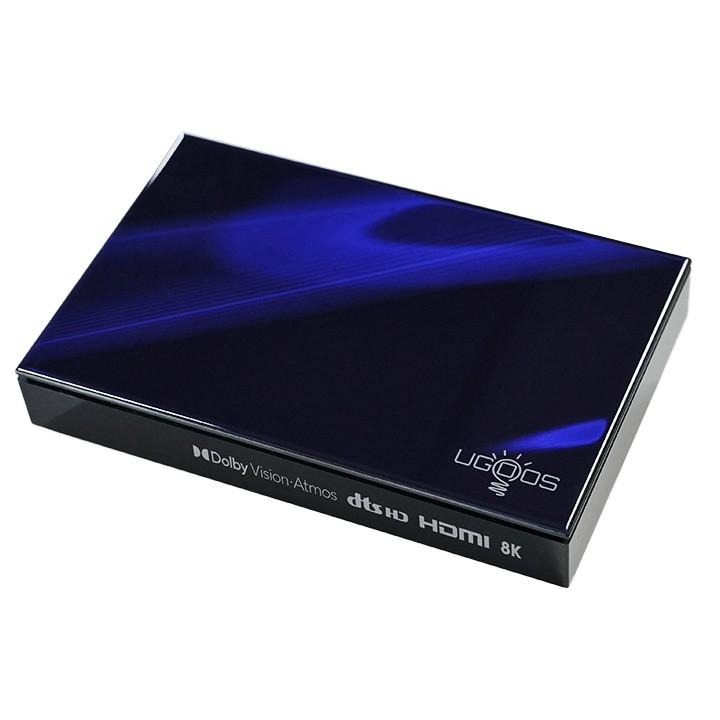
Ugoos SK1 · Installation and controls
Support confirmed · Android 14
Install TECHNOZON Home
Setup uses the same profile for SK1 and SK1 Lite. Before installation it checks the stock home screen so you can restore it later.
- Connect a Windows 10/11 x64 PC and the box to the same local network. In Developer options on the box, enable ADB debugging. Open the installer, select the box or enter its IP address, and approve the debugging request on the TV.
- Select Install and follow the on-screen prompts. On this build the installer sets TECHNOZON Home as the Android home screen without root or Magisk. Press Home on the remote and check that TECHNOZON Home opens.
Use your phone as a remote, stream the screen and save a backup
- Install TECHNOZON Home Companion on your Android phone. Connect it to the same local network. On the TV, open Home Settings → Companion, enable access and display the pairing QR code.
- Scan that code with your phone camera, open the link in Companion and tap Connect. Use the arrows and OK to open an app on the TV. In streaming mode, tap Exit to return to the remote.
- In the Companion backup section, save your Home settings to your phone. To include a settings file from another app, export it in that app first. Grant file access on the box, then import the file in the app after restoration. Confirm any APK installation on the TV.
Restore the factory home screen
Open the installer on the same PC, select your box and choose the option to restore stock HOME. This restores the original launcher (Launcher3 or system ULauncher) and turns off Companion remote access. After reinstalling Home, enable access in Companion settings on the TV and reconnect from the phone.
Support chat